
Omnivex Ink – Advanced Search
1. Introduction
This document introduces the advanced search capabilities of Omnivex Ink. Our goal in creating this feature is to provide you with a powerful tool to search for items such as Files, Apps, Displays, etc. In large installations these items can grow to number in the hundreds and being able to locate specific items is critical.
2. Regular Search vs Advanced Search
At the top of each showcase (Apps, Files, Displays, etc.) you will see a standard search box. This is where search queries are entered.
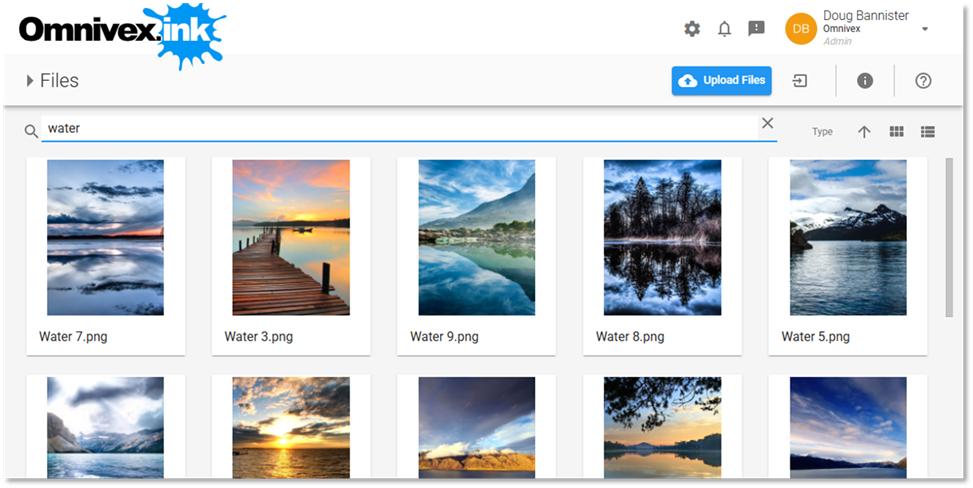
A regular search query is simply one or more search words typed into the search box. You can either press Enter or wait a moment and the filtered items will be shown. If you type more than one word such as “yellow taxi”, all items with a name that contains both “yellow” and “taxi” will be displayed. The only property of the items that is being considered in a regular search is the Name.
If you want to search on properties other than Name, you will need to use the advanced search. To tell the search box that you want to use an advanced search, you must start the search query with a double right chevron “>>”. You then follow this with a string that identifies the parameters you would like to use for the search. When you have finished entering the search query, press Enter to execute the search.

To exit advanced search, simply click on the X at the right end of the search box to clear the search query and return to the regular search and a full view of all items.
3. Advanced search parameters
As noted above, the advanced search query starts with a “>>”, followed by a logical statement made of conditions which are made up of properties, operators, constants, and parenthesis.
For example, the search query >>(name CONTAINS “Ad”) AND (fileSize > 5000000) has two conditions joined with the logical operator AND.
Some comparison operators do not have a comparison value, or they may have an optional comparison value.
For example, the operator SCHEDULED can omit a comparison value in which case the current date and time are taken as the comparison. Otherwise, if a comparison date/time is provided, that is used. Therefore, both the following searches are valid, but each will return a different set of items.
>>$.metadata.Schedule.value SCHEDULED
>>$.metadata.Schedule.value SCHEDULED “2025-12-01T18:00:00Z”
3.1 Data types
For comparisons there are several data types supported in the query. Every property of an item has a value which is one of these data types. These are the supported data types and their delimiters:
Data type | Delimiter | Examples |
String | Double quote " | "Hello, World" |
Number | (none) | 42 or 42.768 or 1.23E+10 |
Date/time (ISO 8601) | Double quote " | "2023-12-17" or "2024-05-28T18:23:18Z" |
GUID | Double quote " | "095f348e-5736-4d0b-873a-376020b9d1ee" |
Boolean | (none) | true or false |
Array | Square brackets [ ] | [42,13,17] or ["foo","bar","baz"] |
Note: If a number or Boolean value is contained in double quotes, it will be evaluated as a string, which will not give you the results you are looking for.
3.2 Properties
Each item type (Apps, Files, Displays, etc.) has a different set of properties that may be used in a search. There are some common properties such as name and updatedDateTime which are used by all objects. If you are in the Files showcase, you must use the property names applicable to Files.
Note: When used in a search query, all property names are case sensitive and must be entered as shown below.
3.2.1 Apps
Property name | Data type | Property name | Data type |
createdDateTime | Date/time | publishedVersion | String |
createdUser | String | updatedDateTime | Date/time |
createdUserId | GUID | updatedUser | String |
id | GUID | updatedUserId | GUID |
name | String |
|
|
3.2.2 Files
Property name | Data type | Property name | Data type |
contentType | String | isProcessed | Boolean |
createdDateTime | Date/time | name | String |
createdUser | String | type | String |
createdUserId | GUID | typeName | String |
fileContentsUrl | String | updatedDateTime | Date/time |
fileSize | Number | updatedUser | String |
fileType | String | updatedUserId | GUID |
galleryId | GUID | url | String |
height | Number | width | Number |
id | GUID |
|
|
3.2.3 Sheets
Property name | Data type | Property name | Data type |
columnCount | Number | organizationId | GUID |
createdDateTime | Date/time | rowCount | Number |
createdUser | String | sheetType | String |
createdUserId | GUID | sheetTypeName | String |
description | String | updatedDateTime | Date/time |
id | GUID | updatedUser | String |
name | String | updatedUserId | GUID |
3.2.4 Folders
Property name | Data type | Property name | Data type |
contentType | String | id | GUID |
createdDateTime | Date/time | name | String |
createdUser | String | type | String |
createdUserId | GUID | typeId | GUID |
description | String | updatedDateTime | Date/time |
fileSize | Number | updatedUser | String |
folderId | GUID | updatedUserId | GUID |
3.2.5 Galleries
Property name | Data type | Property name | Data type |
createdDateTime | Date/time | id | GUID |
createdUser | String | name | String |
createdUserId | GUID | updatedDateTime | Date/time |
description | String | updatedUser | String |
galleryTypeName | String | updatedUserId | GUID |
3.2.6 Displays
Property name | Data type | Property name | Data type |
assignedAppId | GUID | name | String |
assignedAppName | String | status | String |
createdDateTime | Date/time | statusDateTime | Date/time |
createdUser | String | updatedDateTime | Date/time |
createdUserId | GUID | updatedUser | String |
description | String | updatedUserId | GUID |
id | GUID |
|
|
3.2.7 Users
Property name | Data type | Property name | Data type |
createdDateTime | Date/time | updatedUser | String |
createdUser | String | updatedUserId | GUID |
createdUserId | GUID | updatedDateTime | Date/time |
id | GUID | userDisplayName | String |
isActive | Boolean | userEmail | String |
3.3 Metadata
In this version of the advanced search, metadata must be accessed using what is called a JSON Path. This is simply a particular string that identifies the metadata field value. This string is case sensitive and must be all lowercase except for the metadata field name (e.g. “City” below) which must follow the case of the metadata field name in Ink. To do a search that involves a metadata field value, implement it as follows:
>>$.metadata.City.value IN [“New York”, “Boston”, “Houston”]
This ability to search based on metadata values is obviously only applicable in those showcases that support metadata, namely Files and Displays. The other object types such as Apps do not support metadata.
The EXISTS operator works with the metadata field, not the metadata value. So be aware that the format is slightly different as shown as the value is not what is being tested for:
>>$metadata.Terminal EXISTS
3.4 Operators
This table contains the operators currently supported by the advanced search query. Many of these are familiar and behave as expected. The operators are shown in uppercase in the table below but will work in either all uppercase or all lowercase. Mixed case will not work. So CONTAINS and contains will both work fine.
Note: String comparison values are case sensitive, unlike in a regular search which is case insensitive.
Operator | Description | Data types | Example |
== | Equals | String, Number, Date/time, GUID, Boolean | name == ”App 123” |
!= | Does not equal | String, Number, Date/time, GUID, Boolean | $.metadata.Floor.value != 13 |
< | Less than | Number, Date/time | createdDateTime < “2025-01-01” |
> | Greater than | Number, Date/time | height > 500 |
<= | Less than or equal to | Number, Date/time | width <= 1920 |
>= | Greater than or equal to | Number, Date/time | fileSize >= 5000000 |
CONTAINS | The value contains | String | createdUser CONTAINS “Bob” |
STARTS_WITH | The value starts with | String | name STARTS_WITH “AA” |
ENDS_WITH | The value ends with | String | email ENDS_WITH “t.com” |
IN | Is one of these values | Array | width IN [1920,3840] |
BETWEEN | The value is between two arguments | Number, Date/time | fileSize BETWEEN 400 AND 10000 |
SCHEDULED | As of the current or specified date and time, the start date/time of the schedule has passed, but the stop date/time has not passed | Date/time | $.metadata.Schedule.value SCHEDULED |
HAS_EXPIRED | As of the current or specified date and time, the stop date/time of the schedule has passed | Date/time | $.metadata.Schedule.value HAS_EXPIRED “2026-01-01” |
HAS_NOT_STARTED | As of the current or specified date and time, the start date/time of the schedule has not passed | Date/time | $.metadata.Schedule.value HAS_NOT_STARTED "2025-11-19T02:30:00Z+01:00" |
EXISTS | The property exists | (none) | $.metadata.City EXISTS |
3.5 Boolean Operators
As all the comparison operators are either true or false in value, we can apply Boolean logic over these, making the filter clause a Boolean query, complete with the classical AND, OR and NOT operators. Briefly, the AND operator has two arguments, left side and right side, and returns true when both arguments evaluate to true, else it returns false. The OR operator has also two arguments and returns to true when at least one of the arguments is true, if all the arguments are false, it evaluates to false. The NOT operator has only one argument and it inverts the truth value of the argument, it returns true when the arguments is false and false when the argument is true.
AND | Logical AND | >>name CONTAINS ".png" AND name CONTAINS "Weather" |
OR | Logical OR | >>name CONTAINS ".png" OR name CONTAINS ".mp4" |
NOT | Logical NOT | >>NOT(name CONTAINS “.jpg”) |
Note: In this version of the advanced search, a NOT must be immediately followed by an opening parenthesis without a space between them as shown in the example above.
3.6 Nesting
With the search query being a full Boolean expression, we can make use of composition using the above operators and parenthesis with any depth required. For example:
>>(name CONTAINS “Welcome”) AND (name CONTAINS “.png” OR name CONTAINS “.jpg”) AND (createdDateTime BETWEEN “2025-01-01” AND “2026-01-01”)