
As an Organization Administrator, you can generate an API Key with permissions to use REST APIs in Omnivex Ink.
To generate an API Key, follow the steps below.
- Log-in to Ink
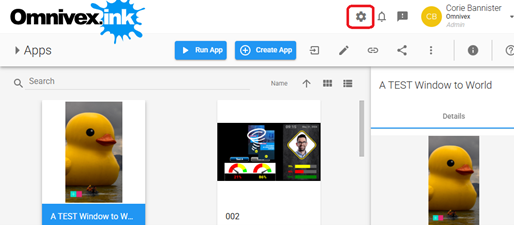
- In the Galleries view, access the "Settings" dialog by clicking on the first icon in the top bar on the top-right corner, from left to right.
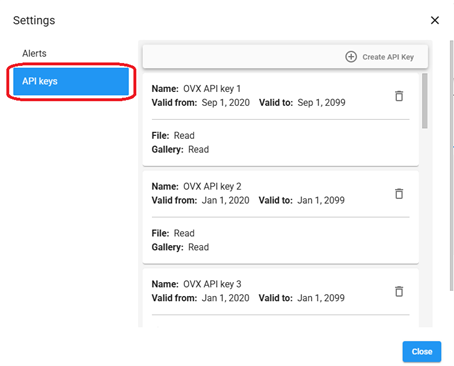
- In the "Settings" dialog, access the "API keys" section by selecting the API Keys option.
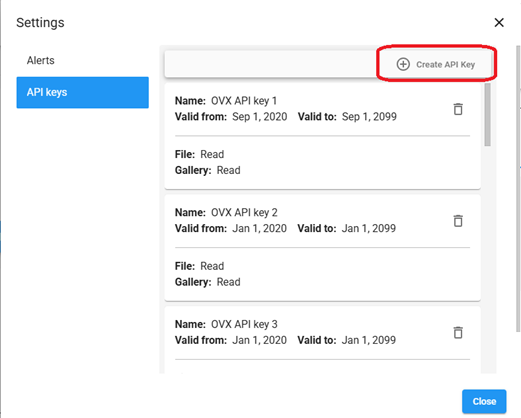
- Access the "Create API Key" dialog by clicking on the button of the same name in the "Settings" dialog.
- Create the API Key with the appropriate permissions. In the screenshot below, an API key is being made to access Metadata Fields in v5.
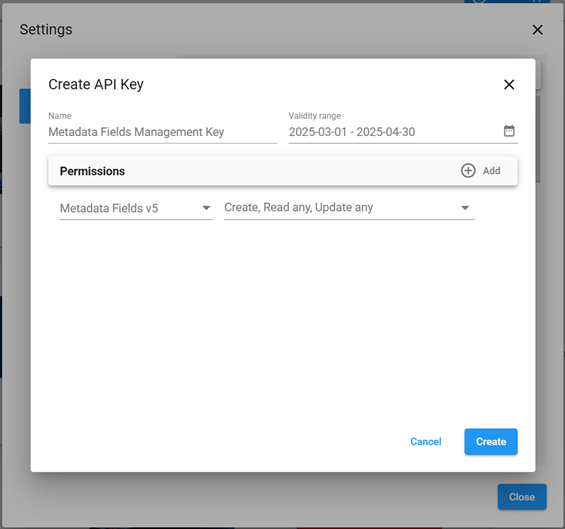
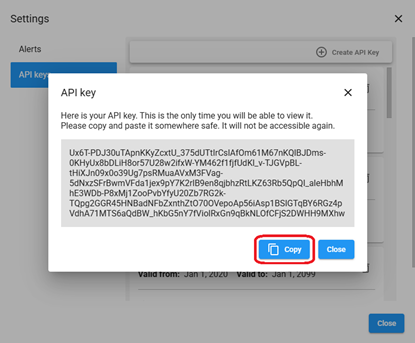
- After clicking on create in the previously opened dialog, copy the newly generated key and keep it in a safe place.
An HTTP Client software is necessary to manage the Ink Metadata Fields using the Ink APIs. Postman is recommended but there are other alternatives like HTTPie or cURL.
See the Omnivex Swagger documentation for more information on how to use the API key. The link below will direct you to the Metadata Fields v5 REST API Swagger documentation.
https://omnivex.ink/api/swagger/index.html?urls.primaryName=Metadata+Fields+v5